
See All Your Calendars in One Place
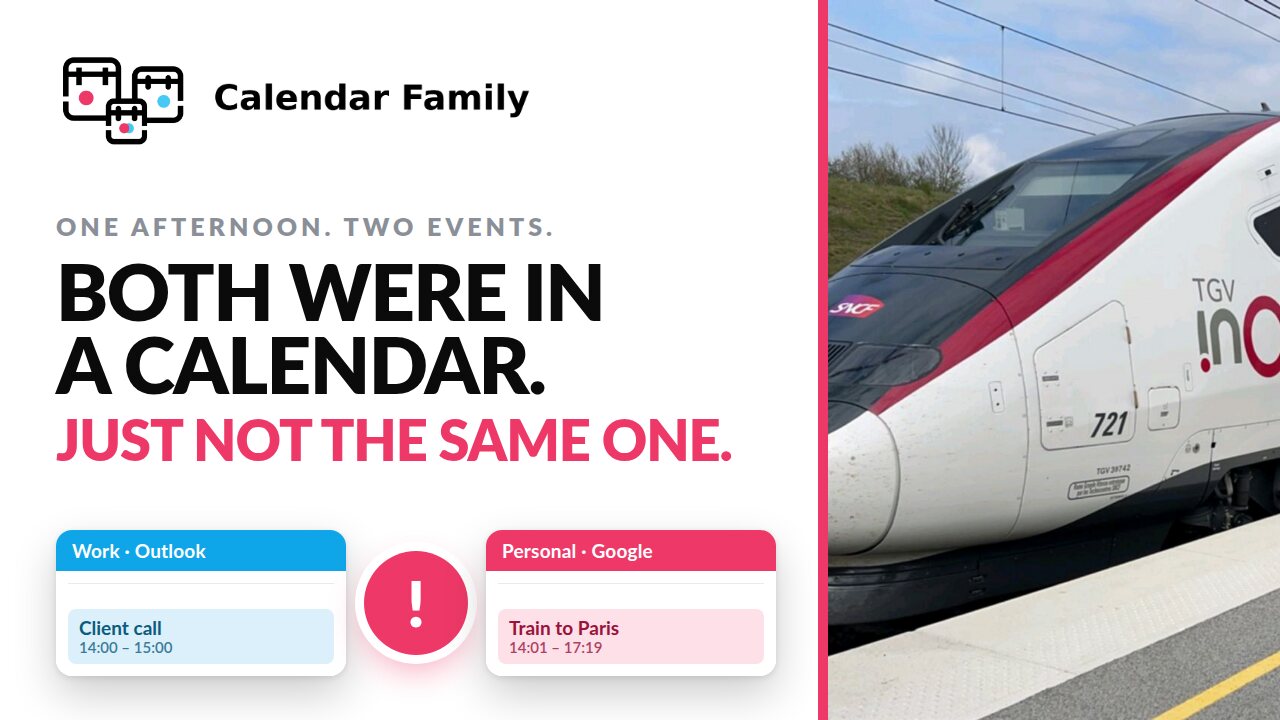
Most people do not have a calendar problem. They have a two or three calendars problem: work in one place, personal in another, and often a family calendar somewhere else again. Each one is fine. The union of them exists only in your head, which is how you end up agreeing to a meeting on an afternoon you had already promised to be on a train.
One account, the calendars you already have
You sign in with an email address, and that is the whole registration. Then you add the calendars you can already see, which includes calendars other people have shared with you through Google's or Outlook's own sharing, so a household or team calendar can be part of the picture without anyone else signing up for anything.
Google and Microsoft take about a minute each: choose Add calendar, pick the provider, and approve access on its own sign-in screen. Calendar Family never sees your password, and you can withdraw the access at the provider at any time. Each account's calendars are then listed individually, read-only ones included, and you can also create a fresh empty calendar at the provider to sync into.
Apple works differently, because Apple offers no one-click approval for third-party calendar access. Instead you generate an app-specific password at appleid.apple.com and paste it in. It grants access to calendars rather than control of your account, you can revoke it at Apple whenever you like, and it is not your normal Apple password. It is a two-minute detour you make once, and it is the same detour every tool that syncs iCloud has to ask for.
A rule per pair of calendars
With the calendars in, you draw a connection between any two of them. On the diagram you can simply drag a line from one to the other, and the form opens already filled in.
A connection has two decisions in it: a sync direction (one-way or two-way) and what to share (all details, or free/busy only).
That second setting is what lets one tool cover situations with completely different privacy requirements:
- Your own two calendars. Two-way, all details. It is one person's day and you want the whole picture in whichever app you happen to have open.
- What other people need to know. One-way, free/busy only. Anyone who can already see that calendar can tell you are unavailable on Thursday evening. They are not told why.
- A household calendar. One-way into yours, so it sits in the same view as everything else and you stop finding out about things last.
Nothing moves until you say so
Once a connection exists, Calendar Family counts what is eligible to move and shows you the list before anything happens. The family stays paused until you press Start syncing.
When it runs, the connection on the diagram animates and a table underneath lists every event with its source, target, time, duration, what was shared and its status, moving from pending to synced as each one lands. The sync window runs from yesterday to a month ahead.
After that first pass it keeps watching. New events, edits and deletions on the source calendar are all carried across, so a meeting moved an hour later at one end moves an hour later at the other.
One week, every calendar, in Calendar Family itself
The calendars stay native and the view above describes what reaches each of them. A group also has its own Week view, a single page showing every calendar in the group laid out across one week, each event coloured by the calendar it belongs to, with previous and next buttons to move between weeks. Because two calendars you sync together both end up holding the same meeting, Week view hides Calendar Family's own synced copies, so you see each real event once, not twice. It's read-only: a quick way to see the shape of your week without opening three separate apps, not another place to edit from.
How fast it is
Google and Microsoft notify us the moment something changes, so an event added on one side usually appears on the other within about a minute. Apple provides no equivalent notification to third parties, so iCloud calendars are checked every 15 minutes instead. That polling floor applies to every calendar sync tool, not just this one.
What it costs
Calendar Family is free to use, works across Google Calendar, Microsoft Outlook and Apple iCloud, and runs in a browser with nothing to install. Two calendars is enough for it to be worth the setup.
Full video transcript
[0:00] Good morning, my name is Alex Stanhope, and today I want to talk about a train. Slightly more of a holiday feel to it. This is a train that I was trying to catch last year, and unfortunately, as I was trying to catch this train in France, I had organised a calendar faux pas: I had organised a client meeting to happen at exactly the same time. The reason this happened was that the meeting was in one calendar, and unfortunately the train was in another calendar, and the two were not synchronised.
[0:29] This prompted me to look at calendar synchronisation services, and I found a number of businesses in this space whose offerings I thought were expensive, so I have made something free. This is calendarfamily.com, and it allows me to synchronise events between different calendars. They can be Apple calendars, Google calendars or Microsoft calendars, and it will read or write events to any of them. This is all pretty simple to set up, so I thought I would demonstrate it.
[0:57] I have logged into calendarfamily.com with my email address. There is no other registration apart from that. I can select my provider, so in this case I am going to select to take work events out of my Google calendar, and that is this one. I am going to add that, and it appears here in my family.
[1:19] Now I am going to add a second calendar, which I want to put those work events into, which is going to be my personal Hotmail calendar. So I go to Hotmail and I select calendar. I could create a new one if I wanted, but I am going to go with the existing one that is there. I add that calendar, and that appears here in the family.
[1:36] The last thing that is there for me to do is to decide how the events should flow between the two, and I can do that by adding a connection, or I can just drag a connection from one to the other. It then brings up this form and pre-populates it, so I can see the source calendar is my work calendar, my Lightenna calendar. It is going to transfer events to my Microsoft Hotmail calendar, which is just called Calendar. I probably should have named that better.
[2:00] And I could either do free/busy, if I am transferring it and I want to give a very limited amount of information, keep all the privacy tight. Or I could transfer all details, if I trust the calendar and I am happy for all the information to be in there. Finally, I click update connection, and it creates the connection.
[2:23] It evaluates how many events there are in the source calendar ready to transfer. It has identified that in the window, the next month, there are five events. And so I just click the flashing start syncing button, and at this point two things happen. One of which is that it animates the transition, so we can see events flowing there from one calendar to another. The second is that this table at the bottom expands, to indicate how many of the events are remaining to be synchronised and are currently queued, and how many of the events have synchronised already.
[2:57] This is all happening in near real time, and so actually that has now completed. And the last part of this is that it is watching my work calendar, my Lightenna calendar, for new events, or event updates, or events that get deleted, and all of those get transferred as well.
[3:17] So this is Calendar Family. This is what I have created. I hope it is useful. If you have any questions, comments or feedback, please let me know, and thanks for watching.